Creating learning materials doesn’t always mean building another slide deck. There are times when demonstration offers far more value that slides. In this third installment of WTT: What’s The Tool?, I’m taking a closer look at ScreenPal, why it is a practical tool for training video creation and whether it’s worth adding to your Learning & Development toolkit.
Why I Decided to Try ScreenPal
I’ve always been interested in tools that make it easier to demonstrate rather than simply explain. Having explored quite a few of them over the years, I found some quite tricky to use and some with most of its features locked in a subscription.
Whether you’re showing someone how to navigate a software application, walking through a process, or creating a quick tutorial, a screen recording can sometimes communicate something much more effectively than a series of screenshots or written instructions.
That’s where ScreenPal comes in.
Category: Video & Screen Recording
Best for: Learning & Development Professionals, Instructional Designers, Trainers, Teachers, and anyone creating tutorials or training videos
Learning Effort: 🏋️ Easy
What’s The Tool?
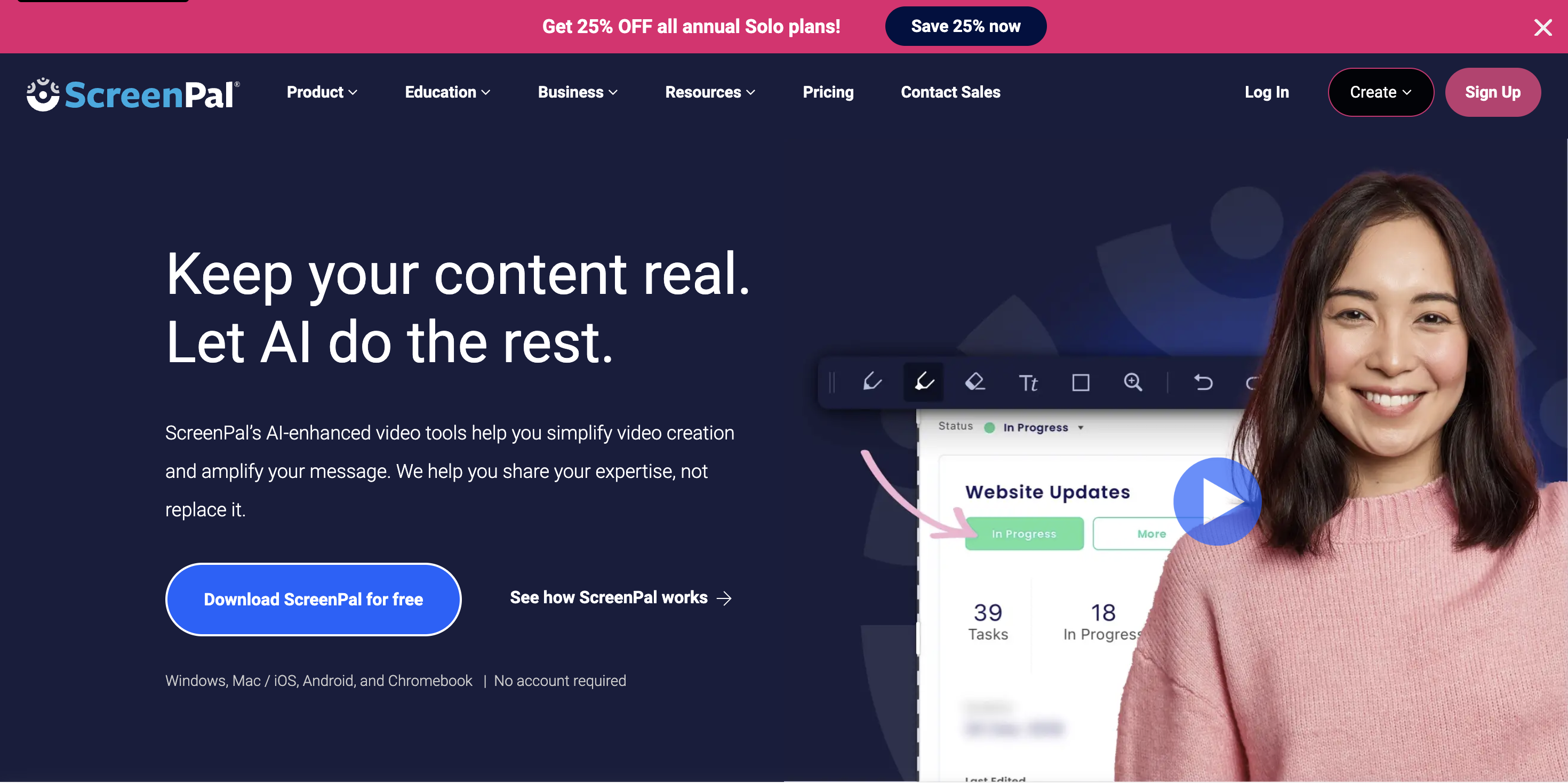
ScreenPal is a screen recording and video creation platform that lets you record your screen, webcam, or both, then edit and share the resulting video.
You can record a specific area of your screen, a window, or your entire screen, while also capturing narration. You can then edit the recording by trimming sections, adding text and annotations, and making other adjustments.
And you don’t necessarily need to pay to try it. ScreenPal’s free plan currently allows recordings of up to 15 minutes, along with basic editing and the ability to save or upload your videos. For learning professionals, that makes it particularly useful for creating short instructional and training videos without needing a complicated video-production setup.
Why Would a Learning Professional Need a Screen Recorder?
Let’s say you’re creating training for a new software system. You could write a step-by-step guide explaining where learners need to click. You could create a PowerPoint with screenshots. Or you could simply show your learners how it is done.
A short screen recording can walk learners through the process while allowing them to see exactly what you’re doing.
This can be particularly useful for:
- Software demonstrations
- How-to tutorials
- Process walkthroughs
- Quick refresher videos
- LMS or system navigation
- Short explanations of digital processes
And because the recording can be saved and shared, learners can revisit it when they need it instead of relying entirely on their memory from a single training session.
What I Like About ScreenPal
It’s straightforward
The basic workflow is pretty simple: Record → Edit → Share
You can launch the recorder and start capturing your screen without needing to learn a complicated video-production workflow. For someone who doesn’t consider themselves a video editor, that makes the tool less intimidating.
You can annotate while you record
One feature I particularly like for instructional content is the ability to draw and annotate while recording. You can use text, shapes, highlights, and other visual cues to direct attention to something on screen. That can be useful when you’re demonstrating a process and want learners to notice a particular button, field, or part of the screen.
The free version is actually usable
ScreenPal’s free version gives you enough functionality to experiment with screen recording without immediately committing to a subscription. For short tutorials and demonstrations, a 15-minute recording limit can also be more than enough. In fact, keeping instructional videos short can sometimes be a good thing.
Where I Think It Shines
I think ScreenPal is particularly useful when showing something is easier than explaining it.
For example:
- Software training
Show learners exactly where to click and what happens next.
Walk through a digital process from beginning to end.
- Quick tutorials
Create a short resource that answers one specific “How do I…?” question.
- Refresher learning
Give learners something they can return to after a training session.
- Teacher-created resources
Create short demonstrations or explanations that learners can access outside the classroom.
The important thing is to start with the learning need rather than the tool.
If a screen recording makes the process clearer, great.
If a written job aid would do the job better, use the job aid.
ScreenPal vs. Just Recording Your Screen
You might be thinking: “Can’t I just use the screen recording feature already built into my computer?”
Yes.
And if all you need is a quick recording, you absolutely can.
What makes ScreenPal more interesting is the combination of recording, editing, annotation, hosting, and sharing in one platform. So I wouldn’t necessarily choose ScreenPal because you can’t record your screen another way. I’d consider it when you want a more complete workflow for creating and managing instructional videos.
Things to Keep in Mind
ScreenPal can make recording and editing easier, but it doesn’t automatically make a video a good learning experience. You can create a beautifully edited 10-minute video that still leaves the learner completely passive.
Before hitting record, ask yourself:
- What does the learner actually need to see?
- Could I explain this in less time?
- Does the learner need to practice after watching?
- Would an interactive walkthrough or job aid be more useful?
That last question is particularly important. Sometimes the best learning experience isn’t a video. ScreenPal is a tool in your toolkit, not a reason to use video for everything.
Free vs. Paid
ScreenPal currently offers a free plan with basic recording and editing capabilities. Its paid plans add additional recording, editing, hosting, collaboration, and other advanced features.
If you’re curious about ScreenPal, I’d start with the free version and see whether it fits your workflow before considering a paid plan.
My Verdict
I think ScreenPal is worth exploring if you regularly need to demonstrate software, explain digital processes, or create short how-to videos. What I like most is that it doesn’t require you to turn video production into a major project. You can record what you need, clean it up, add some helpful visual cues, and share it.
But I wouldn’t use it simply because video sounds more engaging. Start with the learning need. If learners need to see it, ScreenPal might be worth a try.
Disclosure
This post contains my own evaluation of ScreenPal based on my exploration of the tool and publicly available information. I am not affiliated with ScreenPal and do not receive compensation for this post.
Features and pricing can change, so check ScreenPal’s current plans and features before making a decision.
Explore More Tools
ScreenPal is one of the 25 EdTech tools featured in my free guide:
Beyond the Basics: 25 EdTech Tools Worth Exploring for Teachers and Learning Professionals
If you’re looking for more tools to explore for teaching, training, and Learning & Development, you can download the guide for free from my Resources Hub.
Looking for Ready-to-Use Workplace Training?
If you’re interested in workplace learning but don’t always have the time to build training materials from scratch, you can also explore Shoshin Learning Lab.
Shoshin Learning Lab offers ready-to-use workplace training resources covering topics in customer service, sales excellence, data privacy, and digital safety.
Explore the shop on Etsy.


No responses yet